
Phase 1 · Client operations guide
Login and Getting Started
Use your staff credentials or, where enabled, an authorised staff barcode to enter SpotStock Inventory.
Purpose and intended users
This guide is for staff members who need to sign in, understand an access message, or request password help.
Before you begin
- Have your email address, username or telephone number and password ready.
- If your company uses attendance controls, complete any required Face Station clock-in first.
- For barcode login, you need an authorised staff barcode and a registered POS device or browser.
Login screen
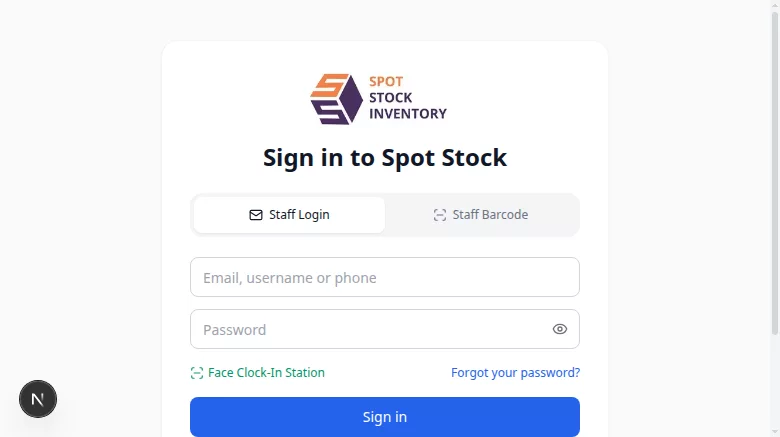
Open the SpotStock Inventory login page. The Staff Login tab contains the identifier and password fields. The optional Staff Barcode tab provides scanner and camera controls.
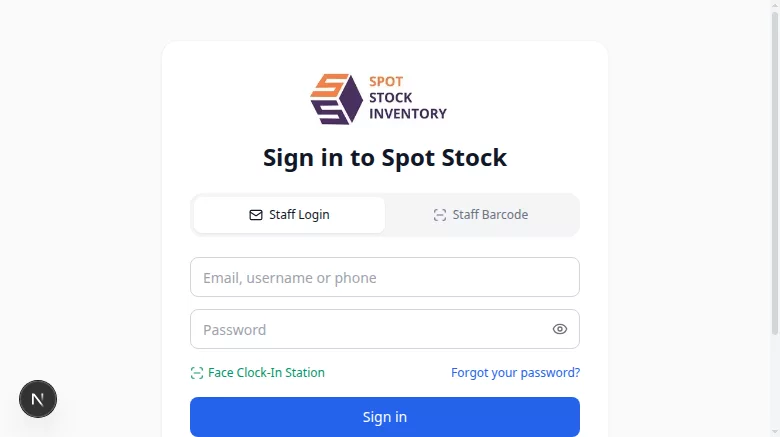
Fields and controls
| Field or control | What it does |
|---|---|
| Email, username or phone | Identifies your staff account. |
| Password | Accepts your account password. |
| Show password / Hide password | Temporarily reveals or conceals the password you entered. |
| Forgot your password? | Opens the password-help request form. |
| Staff Barcode | Opens the optional barcode sign-in method. |
Sign in with your staff credentials
- Select Staff Login.
- Enter your email address, username or telephone number.
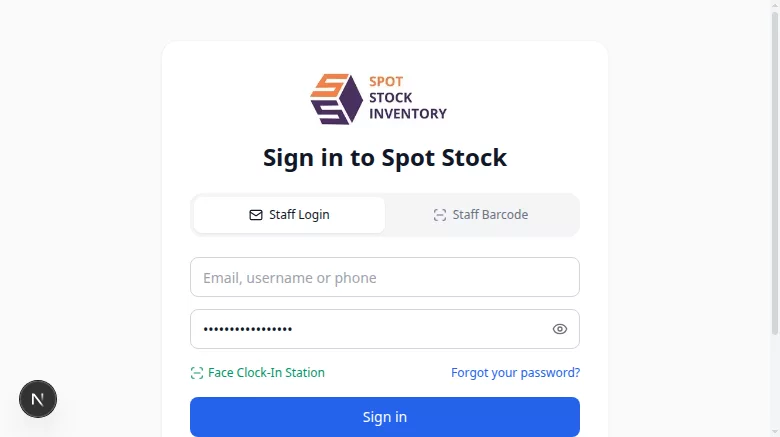
- Enter your password. Use Show password if you need to check it, then select Hide password before continuing.
- Select Sign in.
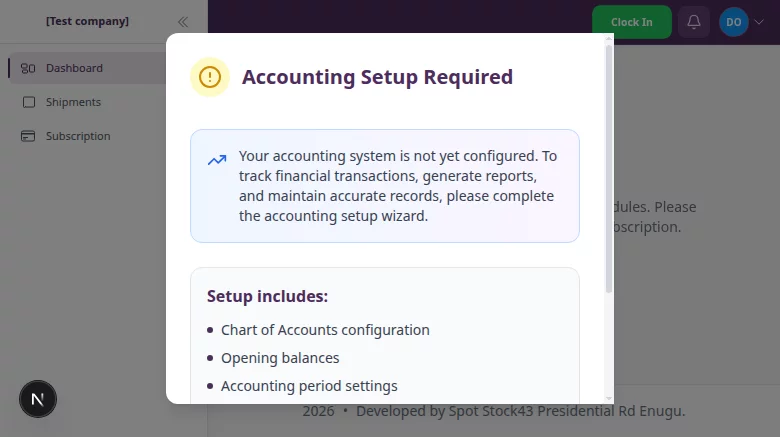
Expected result: an ordinary staff account opens the dashboard. A platform administrator account opens its separate administration dashboard.
Optional: sign in with a staff barcode
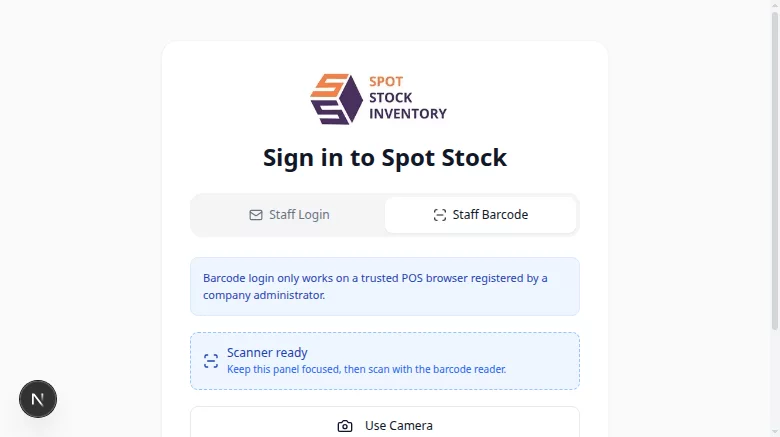
Barcode login may not be enabled for every company. It requires an authorised staff barcode and a POS device or browser registered by an administrator. Scanner and camera availability depends on your device.
- Select Staff Barcode.
- Use the barcode reader, or select Use Camera if your device supports it.
- Present your authorised staff barcode.
- Wait while the account is verified.
Expected result when configured: a valid barcode on a trusted device should follow the same dashboard navigation as staff credential login. The barcode interface was verified, but barcode authentication and physical scanner/camera operation were not completed during this documentation review.
If the option is unavailable, the scanner or camera does not work, or the browser is not trusted, contact your administrator.
Attendance-related access messages
Your company may require staff to clock in before login. The interface may tell you to use the Face Station, that you have already clocked out, or that the daily clock-out window has closed.
- If instructed to clock in, use the Face Clock-In Station or Open Face Station link presented on the login screen.
- If you have already clocked out or the permitted time window has closed, contact your administrator when you believe access is still required.
Detailed Face Station setup and attendance administration will be covered in future HRM documentation.
Subscription-related access
If your company does not have active subscription access, ordinary staff may be asked to contact an administrator. An administrator may receive limited access for subscription management. Contact your company administrator if the message appears unexpectedly.
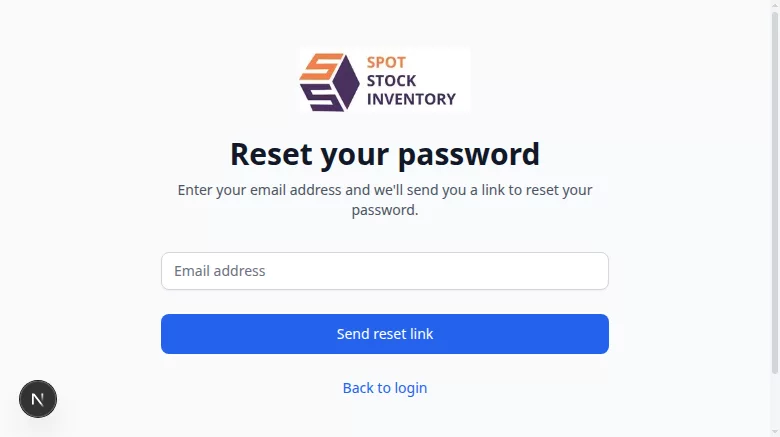
Request password help
- Select Forgot your password?.
- Enter the email address associated with your staff account.
- Select Send reset link.
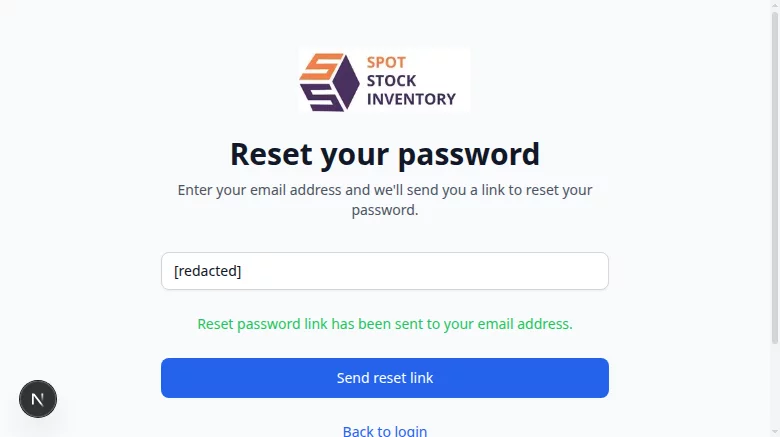
- Look for the confirmation that a link has been sent.
Verification note: submission and the on-screen confirmation were verified using isolated local mail output. Delivery through a deployed email service was not tested.
Reset your password from the email link
Password reset is partially verified. The form submission, successful reset, return to login, new-password login, former-password rejection, and one-time token behaviour passed in a controlled local environment. Direct navigation through the generated email link’s configured origin and expired-link behaviour remain unverified.
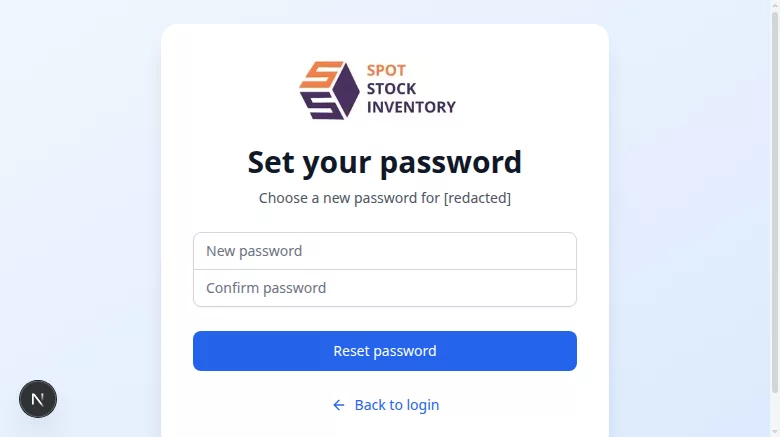
- Open the password-reset link received by email.
- Confirm that the link opens the Set your password screen and includes your email address. The link must also contain its reset token.
- Enter a new password of at least eight characters.
- Enter the same password in Confirm Password.
- Submit the form.
- After the success message, the interface returns to the login screen.
- Log in using your new password.
Expected result: the password is accepted, a success message appears, and the login screen opens.
Common problems and immediate actions
| Message or problem | What to do |
|---|---|
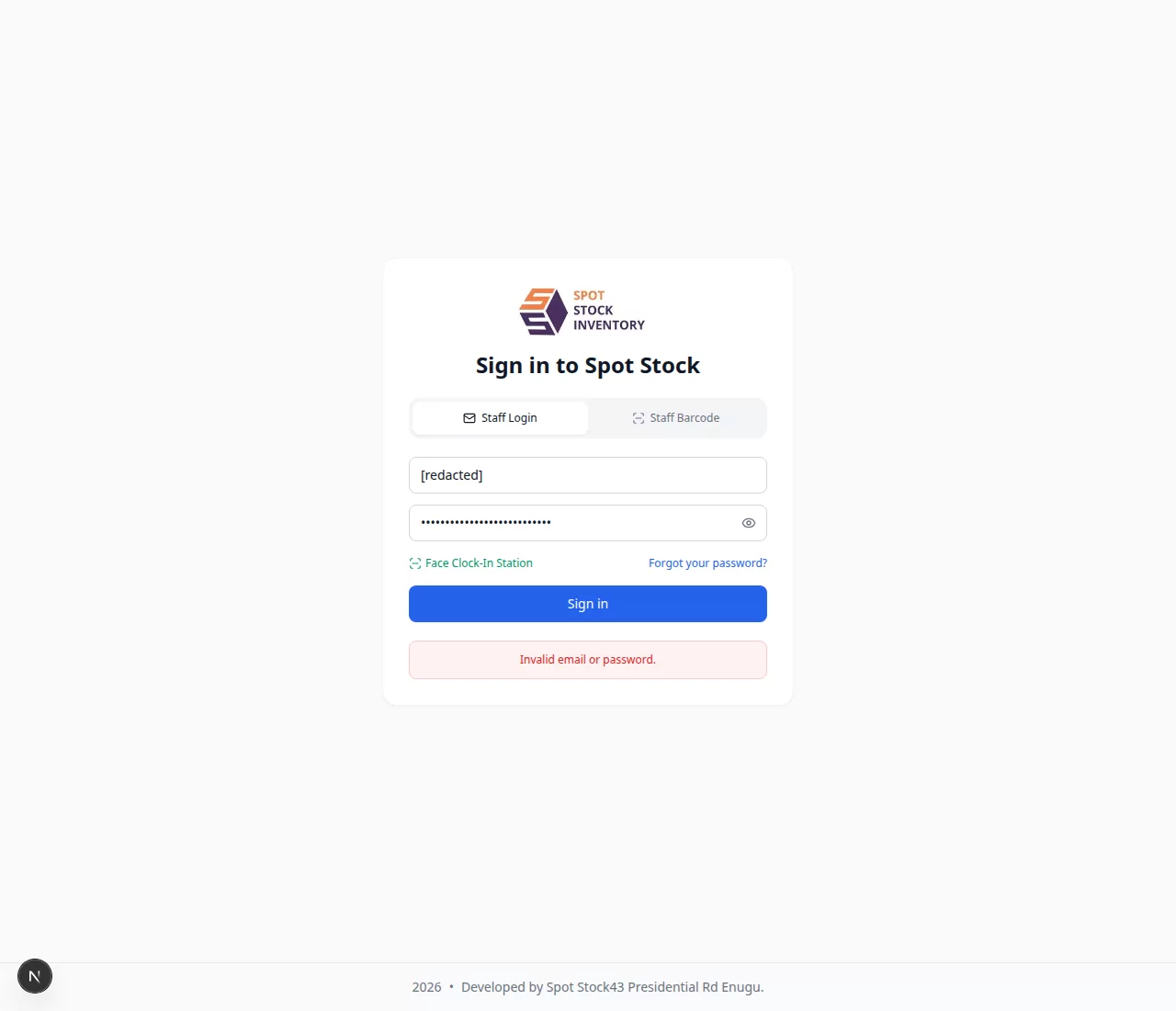
| Invalid login details | Check the identifier and password, then try again. Contact an administrator if the account details are uncertain. |
| Account is not active | Contact your administrator to confirm that your staff account is enabled. |
| Clock-in or Face Station required | Use the Face Station link shown on the login screen, then try again. |
| Already clocked out or clock-out window closed | Contact your administrator if you still require access. |
| No active subscription | Contact your company administrator. |
| Browser is not a trusted POS device | Ask an administrator to confirm the registered device or browser. |
| Barcode does not scan | Check device scanner/camera availability and contact an administrator if the problem continues. |
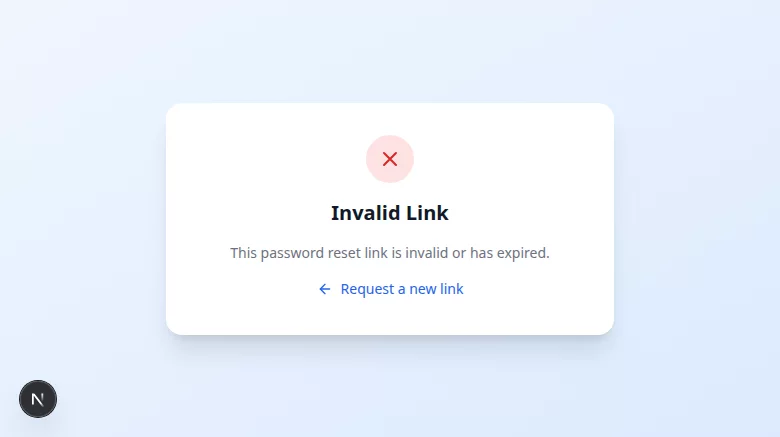
| Invalid password-reset link | Use the complete link from the latest reset email. If the email address or reset token is missing, request a new link. |
| Expired link or reused reset token | Return to Forgot your password? and request a new link. Use the latest link only once. |
| Passwords do not match | Enter the same new password in both password fields. |
| Password is too short | Enter a password containing at least eight characters. |
| Password reset is rejected | Review the displayed message. Request a new link if necessary, or contact an administrator if the problem continues. |
Keep your account secure
- Do not share your password or staff barcode.
- Do not photograph or copy another staff member’s barcode.
- Sign out when you finish using a shared device.
- Report unexpected access messages to an administrator.
Login checklist
- You used your own credentials or authorised barcode.
- The expected dashboard opened.
- After a password reset, you returned to login and used the new password.
- No unresolved attendance, subscription or device message remains.
Related future guidance
- Dashboard
- Staff Management
- HRM and Face Station
- Subscription
Frequently asked questions
Can every staff member use barcode login?
No. Your company must enable it, your barcode must be authorised, and the device or browser must be trusted.
Why did login send me to the Face Station?
Your company’s attendance rules may require clock-in before application access.
What should I do if my password-reset link does not work?
Request a new link and use the latest email. Contact an administrator if the problem continues.