
Phase 2 · Client operations guide
Dashboard
Use the Dashboard to review the operational information available to your account and open permitted day-to-day tasks.
Purpose and access
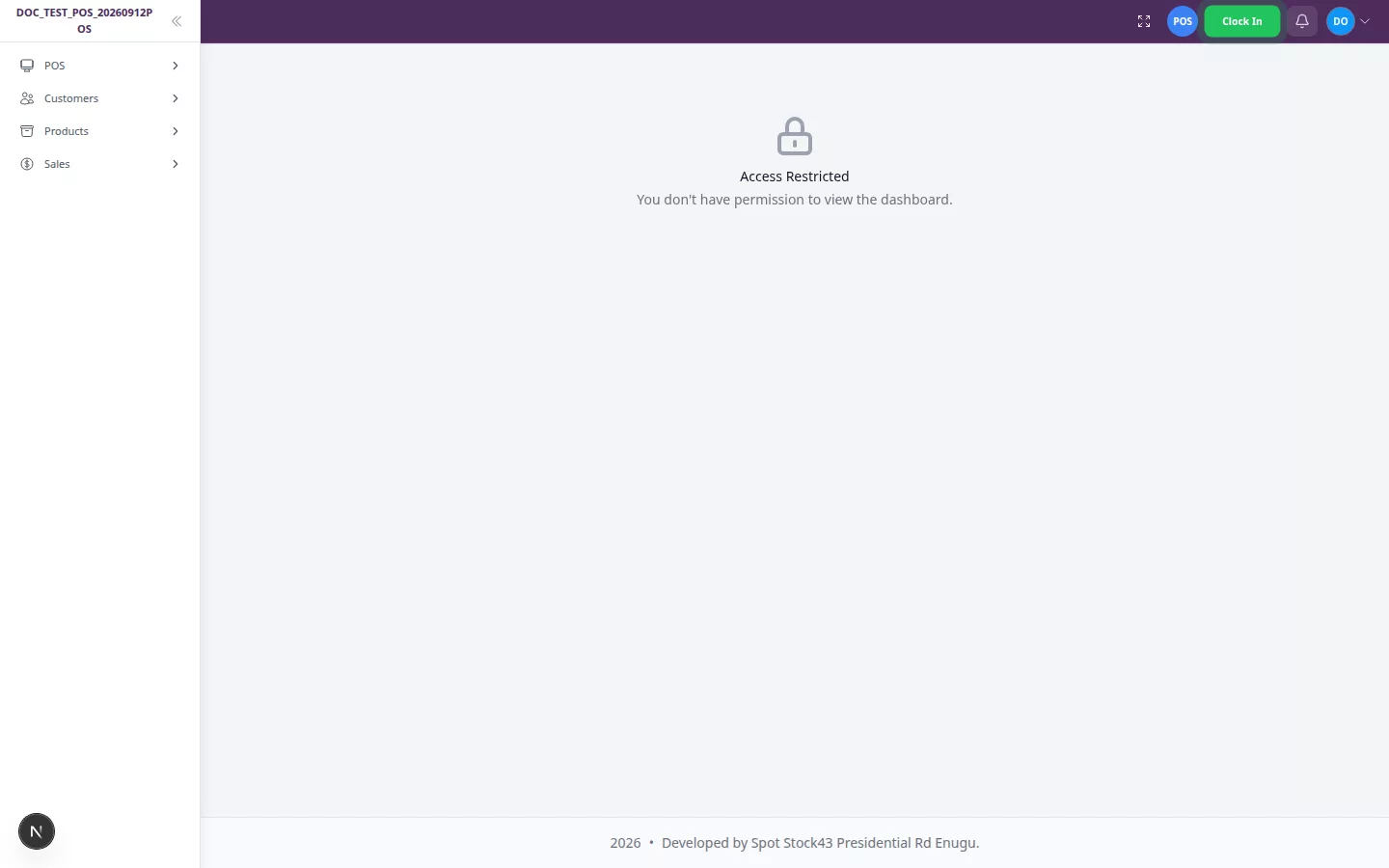
The Dashboard gives signed-in staff a concise view of activity. Your role, company subscription and permitted modules determine whether you see Inventory, POS, Hotel, combined Inventory/Hotel tabs, or a no-module message. If you do not have Dashboard access, the page shows Access Restricted.
Cards and shortcuts also follow your permissions. A shortcut you cannot use is not shown.
Which Dashboard opens?
| Available modules | Dashboard result |
|---|---|
| Inventory and Hotel | Tabs let you switch between Inventory and Hotel views. |
| Inventory only | Inventory Dashboard, or the POS-focused view for users without complete-dashboard access. |
| Hotel only | Hotel Dashboard. |
| Neither Inventory nor Hotel | A message explains that no Dashboard module is available. |
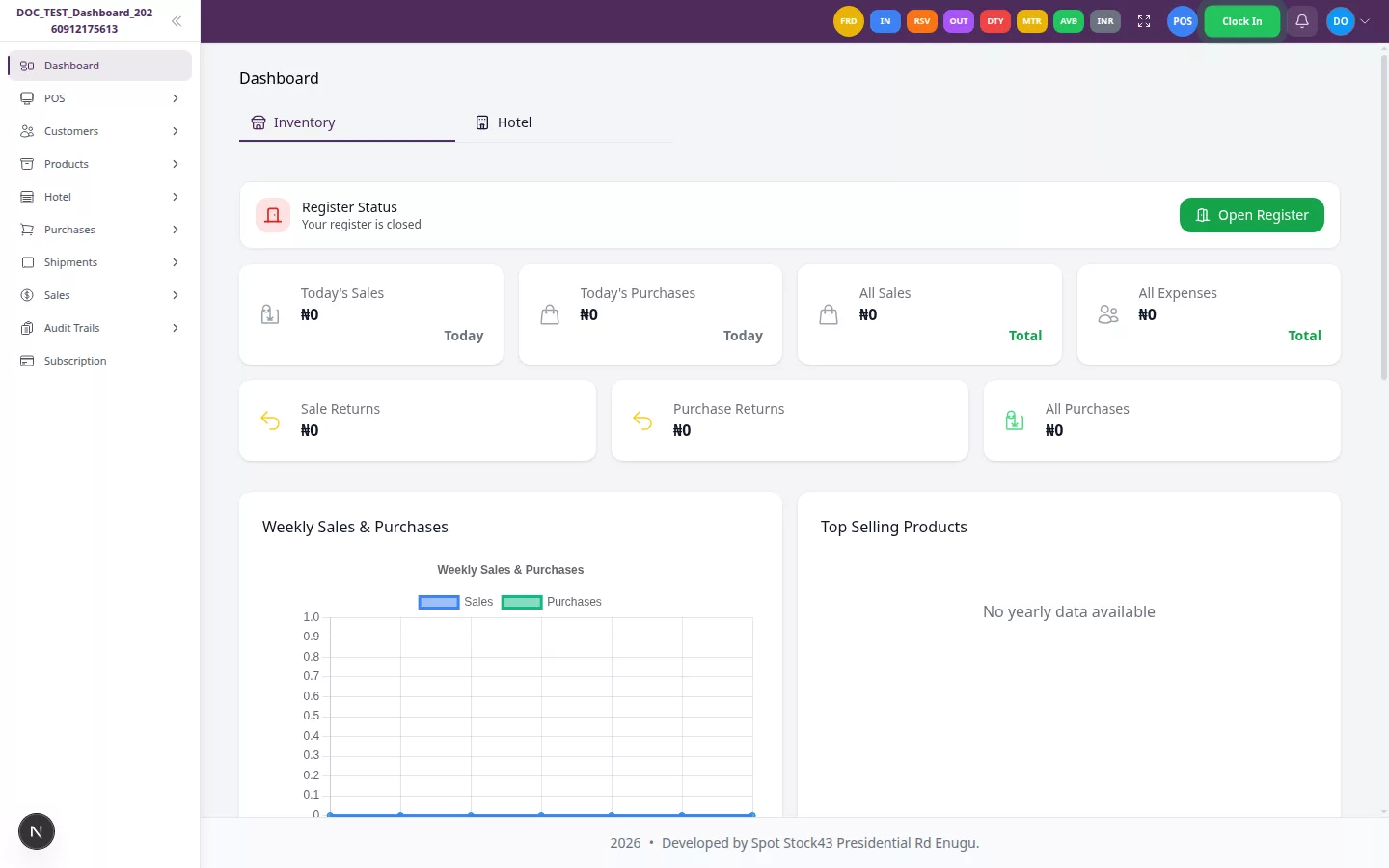
Verification note: Inventory-only, combined-module, restricted and no-module selection were runtime reviewed. Hotel-only selection was not runtime-tested in this phase.
Inventory Dashboard
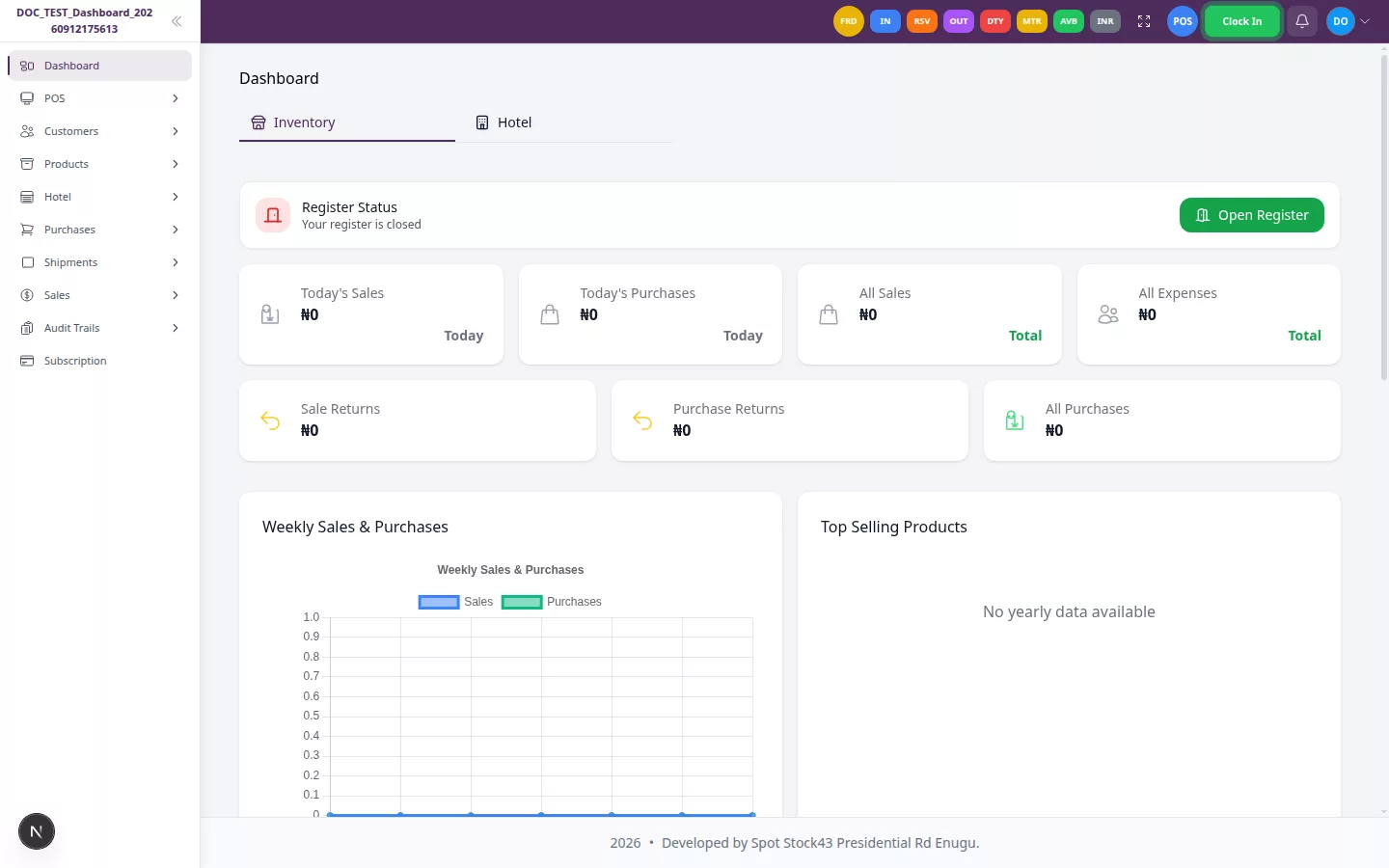
The Inventory view can show only the sections your account is authorised to see.
| Card or section | Meaning and period |
|---|---|
| Today's Sales | Total value of completed sales dated today. |
| Today's Purchases | Total value of received purchases dated today. |
| All Sales | Total value of completed sales across the available history. |
| All Expenses | Total recorded expense value across the available history. |
| Sale Returns | Total value of received sales returns. |
| Purchase Returns | Total value of eligible completed or posted purchase returns. |
| All Purchases | Received purchase value less eligible purchase returns. |
| Weekly Sales and Purchases | Daily completed-sales and received-purchase totals for today and the previous six days. |
| Top Selling Products | Five products with the highest completed-sale quantity in the current month; the yearly chart uses the current year. |
| Top Customers | Five customers with the highest completed-sale value in the current month and year. |
| Recent Sales | The five latest completed sales available to the account. |
| Stock Alerts | Up to ten alerting product-and-warehouse stock records. |
Information is limited to your company. Administrators use the company scope; other staff see assigned warehouses only. A staff account with no assigned warehouse receives no warehouse-based figures rather than company-wide data.
Verification note: Zero and empty states were runtime reviewed. Populated transaction values, rankings and Stock Alerts are supported by focused automated tests rather than populated runtime fixtures.
POS Dashboard
The POS view focuses on today’s permitted sales values, recent completed sales, register status and quick actions. Depending on your access, the actions can include New Sale, New Order, View All Sales and View Customers. Only usable destinations are displayed.
The register panel shows whether the relevant register is open or closed. Use its available action according to your company procedure before processing transactions.
Verification note: Permission-aware POS shortcuts were partially runtime-reviewed. No POS screenshot is published for this release because the available candidate did not reliably represent the POS Dashboard.
Hotel Dashboard
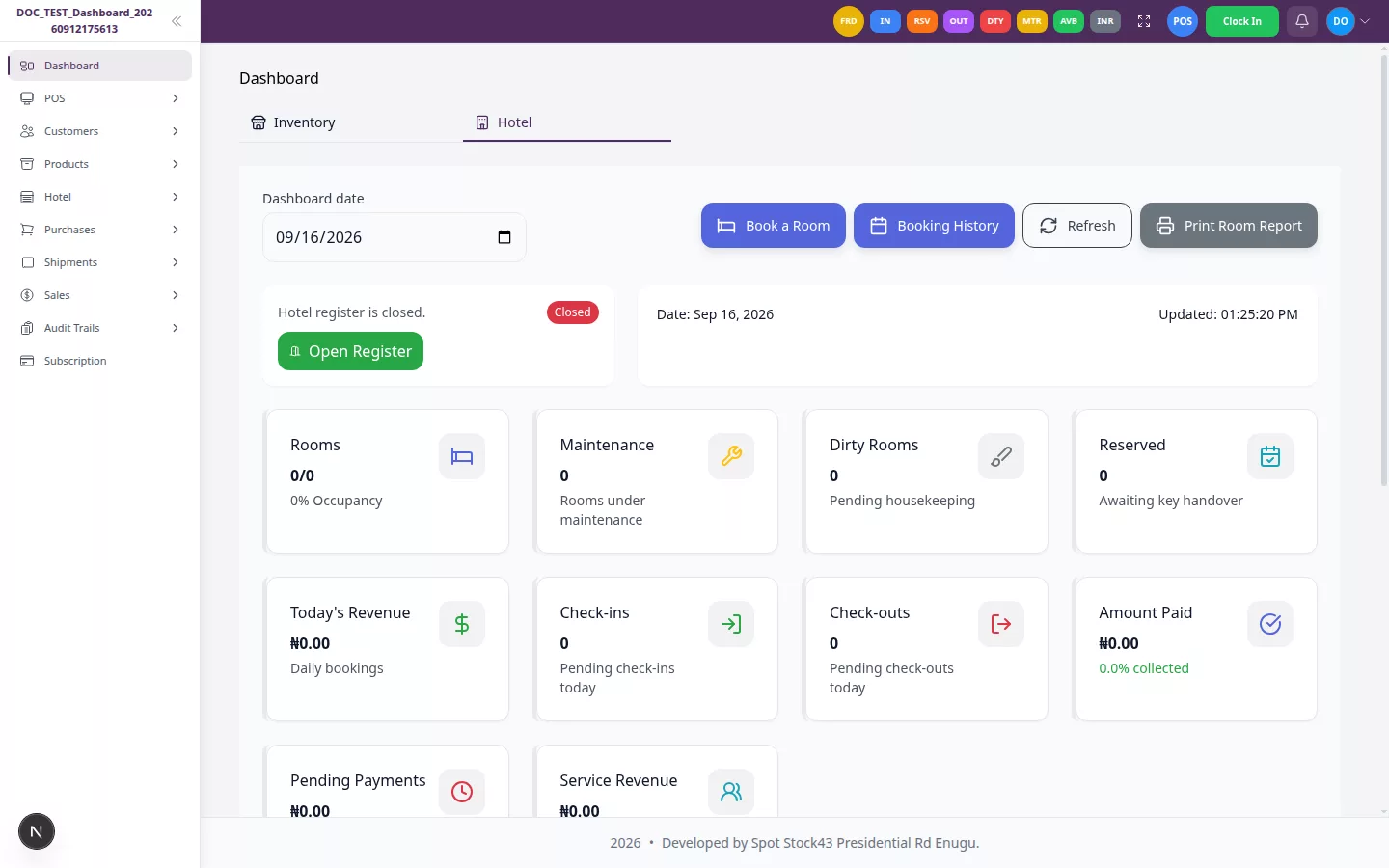
The Hotel view summarises rooms, occupancy, bookings, pending arrivals and departures, key status and financial information for the selected date and filters.
Filters
- Choose the Dashboard date.
- Optionally select a Room type, Floor or Room status.
- Use Search rooms to narrow the displayed room cards by room number or type.
- Select Refresh when you want to request the latest result immediately. Your current filters remain applied.
The Hotel Dashboard also refreshes automatically at short intervals. Runtime review confirmed the active refresh indicator and retained filters, but completion after a single isolated request was obscured by the automatic refresh interval.
Room-type financial scope
When no room type is selected, financial cards show booking-level totals. When a room type is selected, Room Revenue uses fares recorded for matching booked rooms. Amount Paid, Pending Payment and Service Revenue show Unavailable, because those booking-level amounts have no authoritative room-level allocation. Remove the room-type filter to restore the normal booking-level totals.
Room totals, availability, occupancy, maintenance, dirty rooms, reservations, pending check-ins/check-outs, charts and room cards remain filtered to the selected room type.
Verification note: The Hotel overview and labels were runtime-reviewed. Populated room cards and room-type financial results rely on focused automated tests.
Loading, zero, empty and unavailable states
- Loading: placeholders or a progress indicator appear while data is requested.
- Zero: a valid calculation produced no value for the period.
- Empty: the request succeeded but there are no matching records.
- Unavailable: the value cannot be calculated accurately for the active scope, or you are not authorised to receive it.
- Error: the request failed. Use Retry for that section. Other successfully loaded sections remain visible.
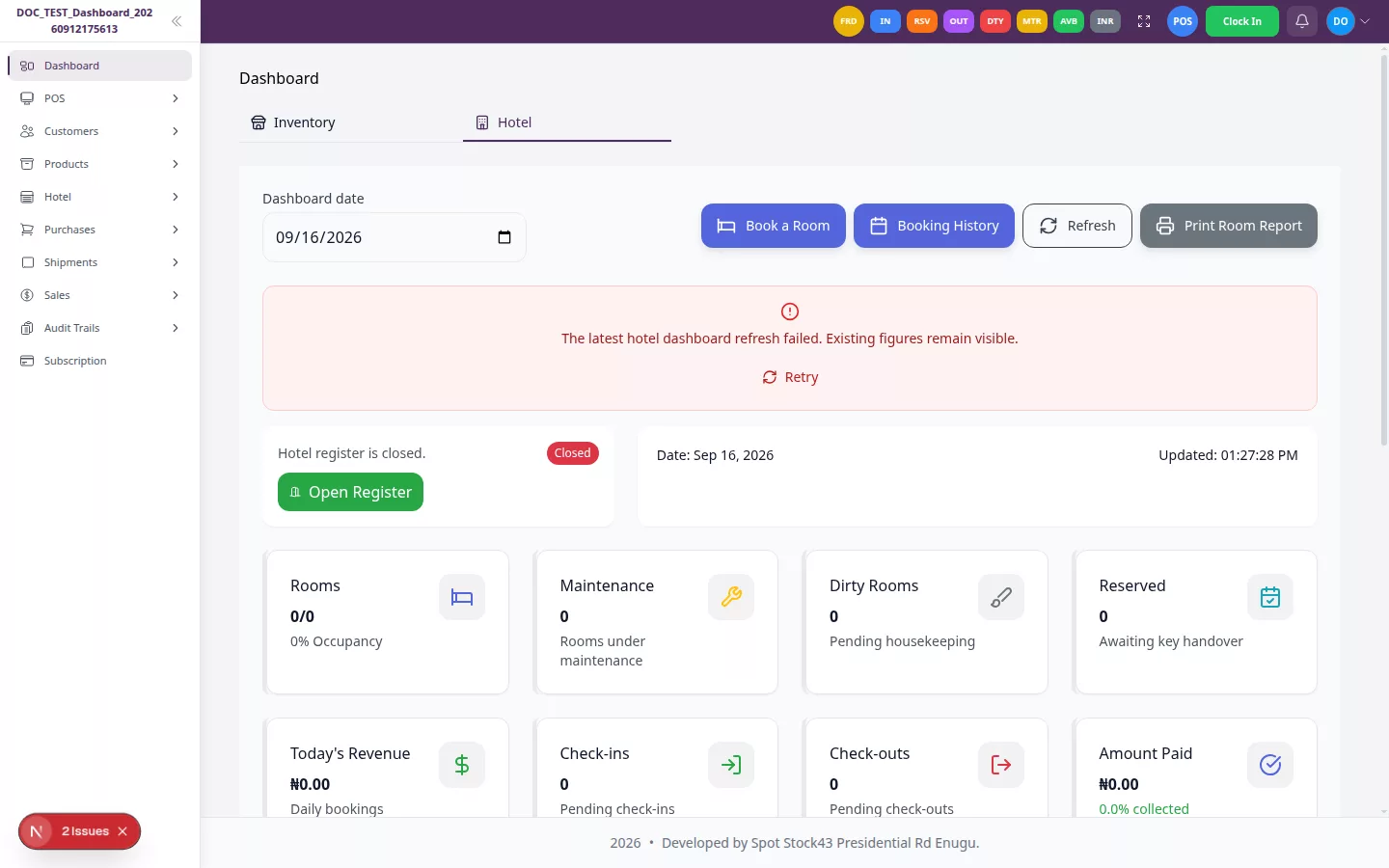
Charts have text summaries of their principal values for users who cannot use the visual chart.
Using the Dashboard on a smaller screen
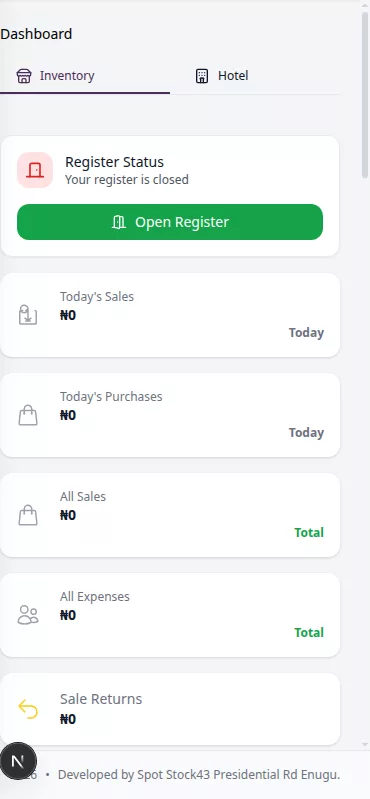
Dashboard cards reflow into a single-column mobile layout. Use the menu button to open navigation and scroll vertically to review the remaining cards.
Common problems
| Problem | Action |
|---|---|
| Access Restricted | Ask an administrator to confirm your Dashboard access and subscribed modules. |
| No Dashboard module available | Ask an administrator to confirm the company subscription and your assigned modules. |
| A section says unavailable | Check the active filters. Remove a room-type filter for complete Hotel booking-level financial totals. |
| A section reports an error | Select Retry. If it continues, contact an administrator. |
| A shortcut is missing | The destination may not be included in your role or subscription. |
| Warehouse figures are empty | Ask an administrator to confirm that the correct warehouses are assigned to your account. |
Dashboard checklist
- The expected Inventory, POS or Hotel view is displayed.
- The register status is suitable for the work you intend to perform.
- Hotel date and room filters match the period and rooms being reviewed.
- You distinguish a real zero from an unavailable or failed value.
- Only shortcuts appropriate to your work are visible.
- Unexpected figures are escalated before being used for an operational decision.
Related modules
- POS
- Products and Stock Management
- Customers
- Sales and Purchases
- Expenses
- Hotel
- Register Management
- Audit Trails